
Basics
Make a Discord channel visible only to certain roles
Marcus · builds Fylgra ·
In short
Make the channel private: under Edit Channel › Permissions, turn on Private Channel and add the roles that should see it. Everyone else then can't see it any more – except the server owner and members with Administrator.
Opens “Channels & categories” on your server. You'll sign in with Discord first.
What this is about
A channel should only be visible to certain roles, such as your team.
In Discord, every member sees every channel to start with. That's because of @everyone, the base role every member has. For a private channel, you take the View Channel permission away from @everyone and give it only to the roles that should see it. Discord has a switch for this: Private Channel.
How to do it in Discord
The steps apply to Discord on a computer and in the browser.
Make an existing channel private
Hover over the channel and click the cog (Edit Channel).
Choose Permissions on the left.
Turn on Private Channel.
Click Add members or roles and pick the roles that should see the channel.
Click Save Changes.
If you create a new channel with the plus next to a category, turn on Private Channel right there and pick the roles.
Fine-tune it
Under Advanced permissions you set each permission per role: allowed, neutral or denied. Neutral means: whatever the role is allowed on the server applies. A private channel looks like this there:
@everyone: View Channel denied.
Your role, for example "Team": View Channel and Read Message History allowed.
If the role should only read: Send Messages denied as well.
Make whole categories private
A category is a folder for channels.
Right-click the category name and choose Edit Category › Permissions.
Turn on Private Category, click Add members or roles and pick the roles.
Click Save Changes.
On a category, the permission is called View Channels. Every channel synced with the category takes over its permissions.
How to tell it worked
Ask someone without the role to take a look: the channel is missing from their channel list.
Common pitfalls
A member can still see the channel. The server owner and everyone with Administrator see every channel. Or the member has a role you allowed in the channel.
The role sees no older messages. It's missing Read Message History. Allow it in the channel. Anyone who has the channel open right now may only see them after switching channels or reloading.
Allow beats deny. If one of the member's roles allows the channel and another denies it, allow wins.
A bot can't post any more. Bots, too, only see a private channel if their role is allowed or they have Administrator. Add the bot's role.
The channel is suddenly open again. When you move it into another category, Discord asks Sync permissions?. If you sync, the channel takes over the category's permissions, and its own are gone.
With Fylgra
You don't need Fylgra for this. It helps when you want to set up several channels at once or check who can see what. You need Manage Channels and Manage Roles, or Administrator, in Discord – otherwise the Preset section is missing in the details.
Open Roles & permissions in the sidebar (on a phone: Menu), then the Channels & categories tab.
Click the category or channel. Its details open next to the list, or on smaller screens instead of it.
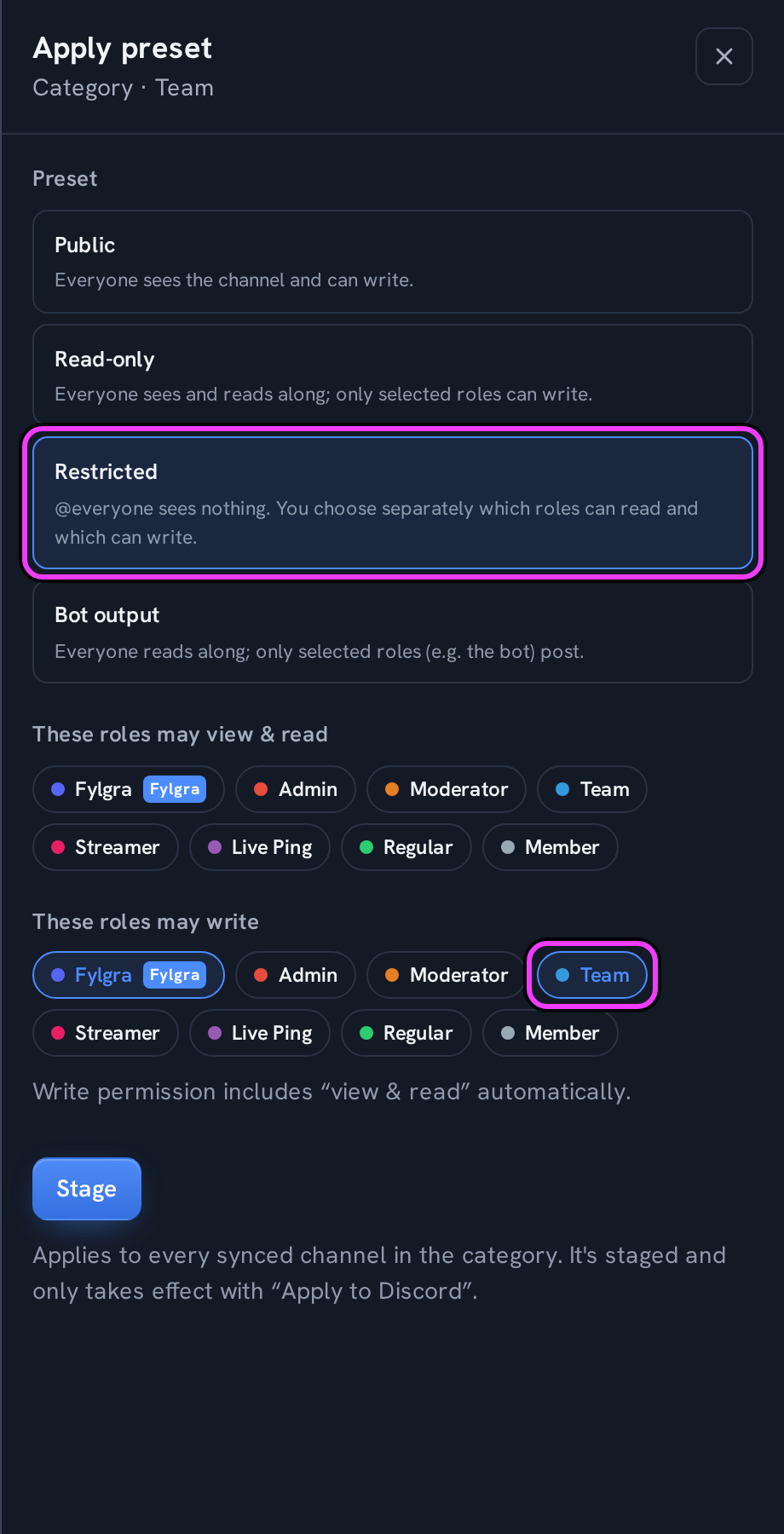
In the Preset section, click Apply preset ….
Pick Restricted. With it, @everyone sees nothing.
Pick at least one more role: under These roles may view & read to read along, or under These roles may write to write too. Fylgra's role (marked Fylgra) is already selected there. Leave it, or Fylgra can't post in the channel.
Click Stage. A bar with the pending changes appears at the bottom.
In the bar, click Apply to Discord and then Apply.
All roles you picked also get View Channel (View Channels on a category) and Read Message History in Discord. Nothing goes to Discord before you apply.
To check the result, use the Permission matrix tab (who sees which channel) and the Simulator tab (the server as one Role sees it) – with Include staged changes even before applying.
Not working?
Still stuck? Write to me – I'll help. Send a report or email fylgra@fylgra.com
Related articles
- Discord moderator permissions without Administrator Discord know-how
- Set up Discord rules and make members accept them Discord know-how
- Discord: let members pick their own roles (reaction roles) Discord know-how
- Set up a Discord ticket system for support Discord know-how
- Set up a Discord welcome message for new members Discord know-how