
Basics
Set up a Discord welcome message for new members
Marcus · builds Fylgra ·
In short
For a welcome message in Discord, turn on the join message in the system messages channel under Engagement in Server Settings. Post your own greeting as a fixed message in a welcome channel where only your team can write.
Opens “Welcome” on your server. You'll sign in with Discord first.
What this is about
A welcome message greets new members and points them to the rules and the most important channels. Discord gives you two building blocks for this:
The join message: Every time someone joins, Discord writes a short line with their name in a channel of your choice, the system messages channel. Discord picks the wording at random, and you can't change it.
A fixed welcome post: a message you write yourself and put in a channel of its own.
How to do it in Discord
The steps apply to Discord on a computer and in the browser.
Turn on the join message
Click your server's name at the top left and choose Server Settings › Engagement.
In the System Messages section, under System Messages Channel, pick a channel everyone can write in, such as your general chat.
Turn on Send a random welcome message when someone joins this server.
Click Save Changes.
Create a welcome channel with your own text
In the channel list, click the + next to a category and choose Text.
Enter a name, for example "welcome", and click Create Channel.
Right-click the new channel and choose Edit Channel › Permissions.
Under Advanced permissions, pick @everyone, the role every member has. Click the red cross next to Send Messages. That way only your team writes there, and your text stays at the top.
Check that View Channel and Read Message History aren't denied for @everyone.
Click Save Changes and write your welcome text in the channel.
If you type # and the start of a channel name in your text, it becomes a link new members can click.
Welcome to our server! 👋
Great to have you here. Here's how to find your way around:
• Read the rules in #rules first.
• Feel free to introduce yourself in #introductions.
• Questions? Ask in #help.
Have fun!
For Community servers: a guided welcome
If you've enabled the Community features, Server Settings › Onboarding includes a Server Guide. There, new members see your welcome text and first tasks after joining.
How to tell it worked
Join with a second account. A line with its name appears in the system messages channel. Your text is in the welcome channel, and the new account can't write there.
Common pitfalls
New members don't see your post. If the channel is in a category only certain roles can see, the same applies to the channel. If Read Message History is denied for @everyone, new members only see messages written after they joined – so not your post.
The join message doesn't come. Check under Engagement that a system messages channel is selected and the switch is on. If new members can't see that channel, they won't see the message either.
New members are welcomed twice. If a bot welcomes them as well, switch off one of the two messages.
The wording of the join message doesn't fit. Discord doesn't let you change it. You only get your own text through the fixed post or a bot.
With Fylgra
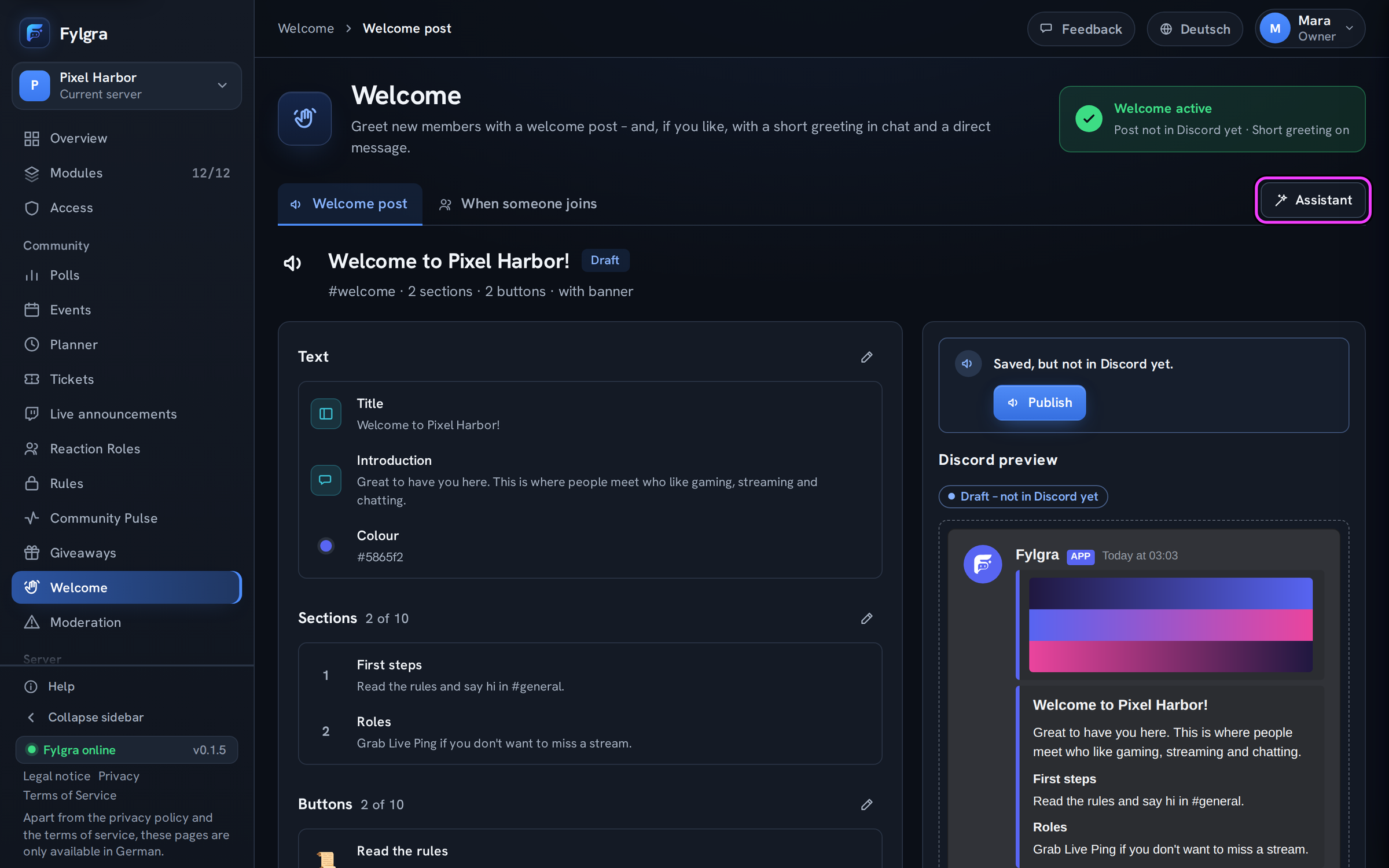
You don't need Fylgra for a simple welcome. The Welcome module helps if you want more than Discord's random line. The page has two tabs:
Welcome post: a post with a banner, sections and buttons that take new members to the rules or roles in one click. Fylgra always updates the same post in Discord.
When someone joins: a Short greeting in chat with placeholders such as {user} (mention), {name}, {server} and {members} (member count), a Direct message (the post or a text of its own) and the Timing: right when they join, or After accepting the rules, with the Rules module and a consent button. Under Advanced › Discord's join message you decide whether and where Discord itself announces new members. Anyone with Manage Server in Discord can change this, and Fylgra needs the same permission.
What Fylgra doesn't change: anyone who has turned off direct messages from server members won't get one. Links in direct messages may only lead to Discord. Anyone who can't see the channel or read its history won't see Fylgra's post either. Fylgra shows you this at the post's channel. If you've stopped @everyone from writing in the channel, Fylgra's role needs its own Send Messages there, otherwise you'll see "Fylgra can't post here." If lots of people join in quick succession, Fylgra bundles the short greetings and sends no direct messages during that time.
Open Welcome and click Assistant. Nothing happens in Discord until the last step. If it's missing, add it under Modules › Add modules. The server owner, everyone with Administrator or Manage Server in Discord, and everyone with the Fylgra access grant Manage for Welcome can set it up.
Not working?
Still stuck? Write to me – I'll help. Send a report or email fylgra@fylgra.com
Related articles
- Fylgras Rolle nach oben ziehen Guide · German
- Set up Discord rules and make members accept them Discord know-how
- Make a Discord channel visible only to certain roles Discord know-how
- Discord: let members pick their own roles (reaction roles) Discord know-how