
Ticket system
LiveYou create your own ticket types, each with its own form, its own people in charge and a private channel per ticket. Whether you reply in Discord or in the dashboard makes no difference: it's the same thread.
New: Fylgra is now open to every server
Discord bot · with a control room on the web
Fylgra lays out in one table which role may see and use which channel. You stage your changes, have Fylgra work out who gets in where afterwards, and only then send them to Discord. If something was wrong, you take single rows back.
Fylgra only asks for the permissions it uses when you invite it – no Administrator. Which ones, and what for
Fylgra already on your server? Sign in
// Permissions
In Discord, permissions don't hang off the role alone. Every channel can carry its own exceptions on top, and they apply in a fixed order: first what goes for everyone, then the member's roles, last an exception for the individual person. After a few months of running a server, nobody is quite sure any more who actually sees a channel. Fylgra works it out and writes down what comes of it.
This is the server as seen by someone who holds only this one role. Next to every channel is the reason the result comes out that way.
each row outranks the one above it; the bottom row is what counts in the end
Nothing reaches Discord before you confirm it here. Only what's in the list is changed; everything else about the channel is left alone.
| Role | Channel | Permission | Change | |
|---|---|---|---|---|
| Member | #media | View Channel | denied→allowed | |
| Member | #introductions | Send Messages | denied→allowed | |
| @everyone | #welcome | Add Reactions | neutral→denied |
Every apply is stored as one package. You undo a whole package or single rows from it; the undo is itself a package again. Deleted channels and roles don't come back this way yet.
Every change that went through Fylgra, as a readable sentence. Expand one to see the state before and after.
A backup helps once something has already gone wrong. This helps beforehand.
If someone renamed, reconfigured or moved a role or channel through Fylgra, you set it back to how it was. Before undoing, you see what will change. The history then reaches back 90 days instead of 30. You can still undo permission changes from the last 30 days for free.
Coming next for Pro: back up your whole server and rebuild deleted roles and channels, with their permissions and settings. The messages in them don't come back. You'll also be able to carry a server's structure over to a new one as your own template. This doesn't exist yet. As soon as it's done, it will say so here.
// Modules
Tickets, polls, events, live announcements, self-assign roles, server rules: plenty of servers bring in six different bots for that. Each one wants setting up separately, and each has its own idea of who's allowed to operate it. With Fylgra it's one bot and one setup. What you may do in the dashboard follows from your roles in Discord.
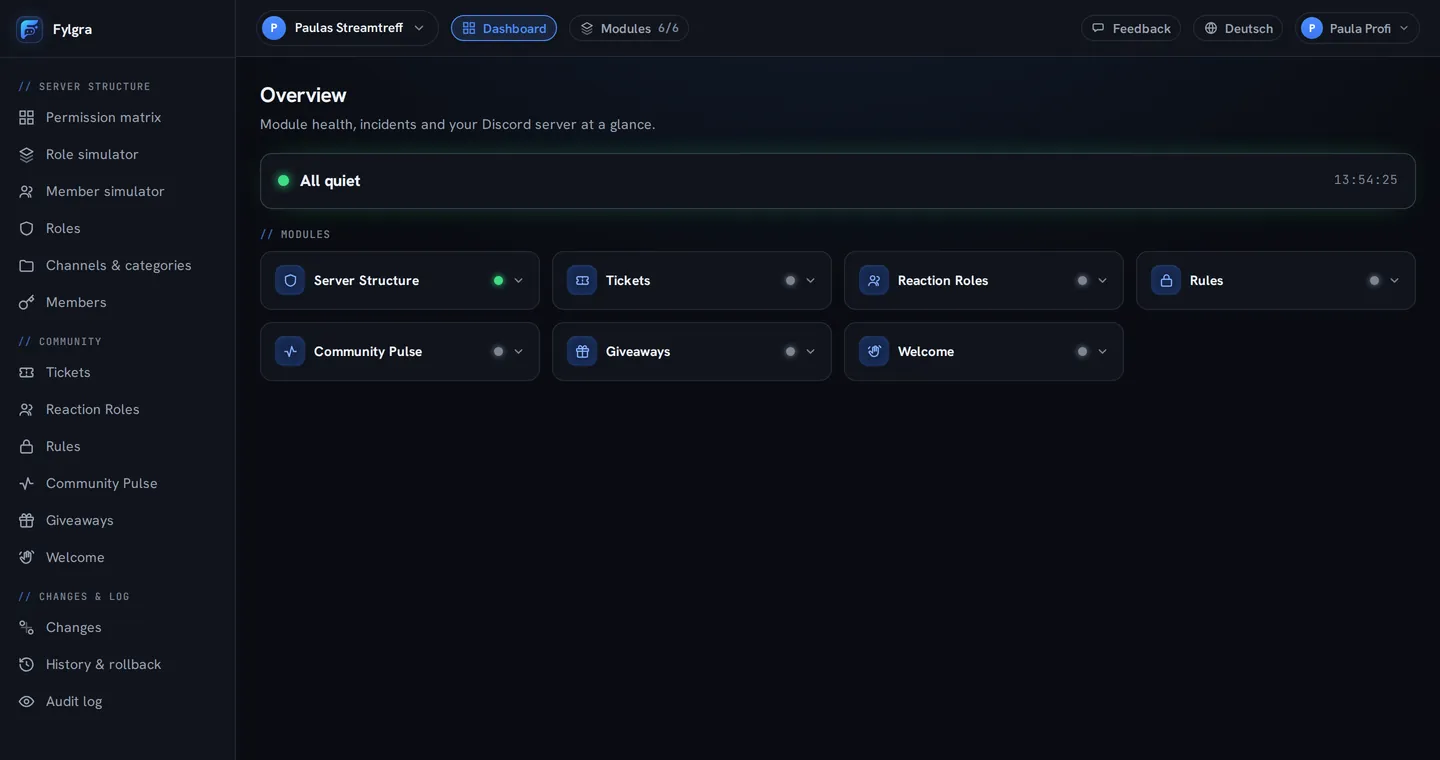
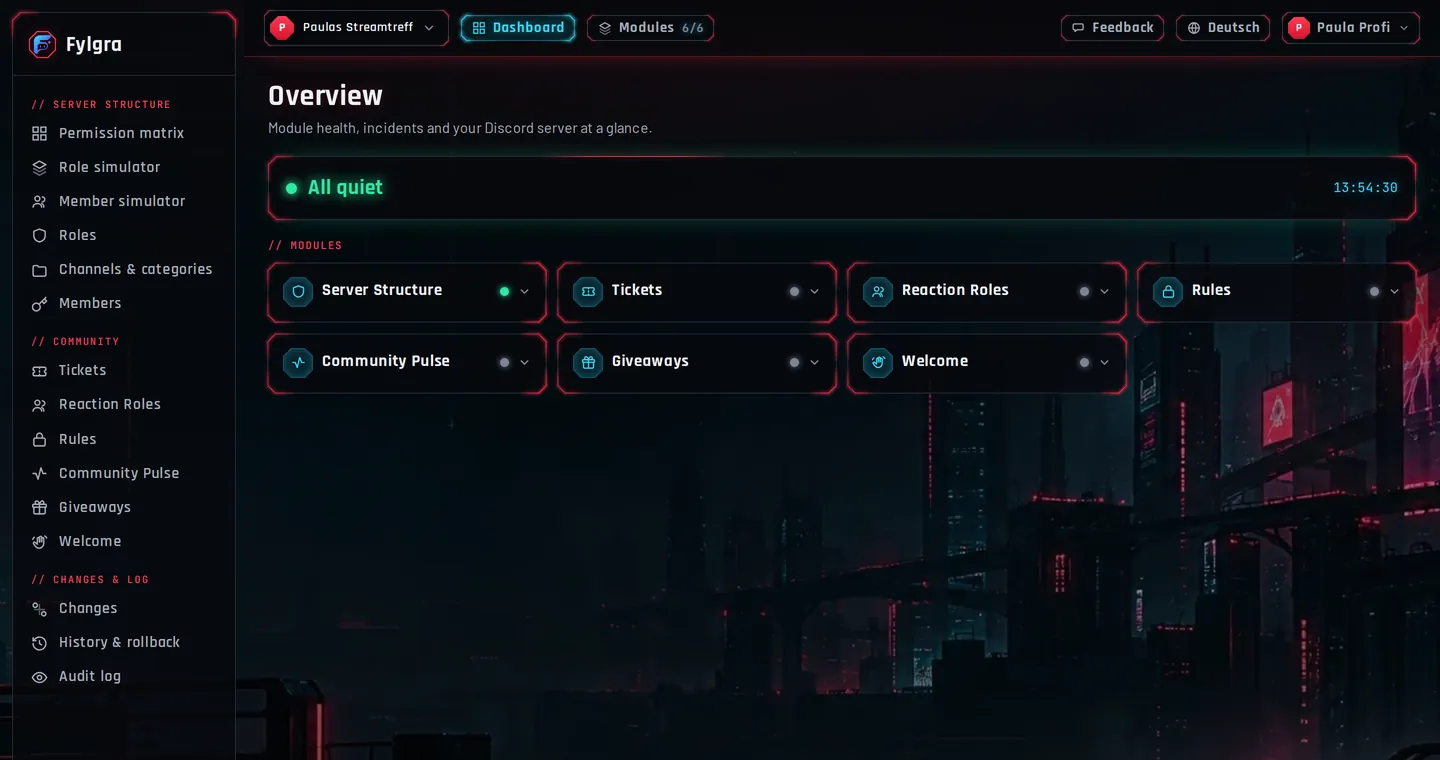
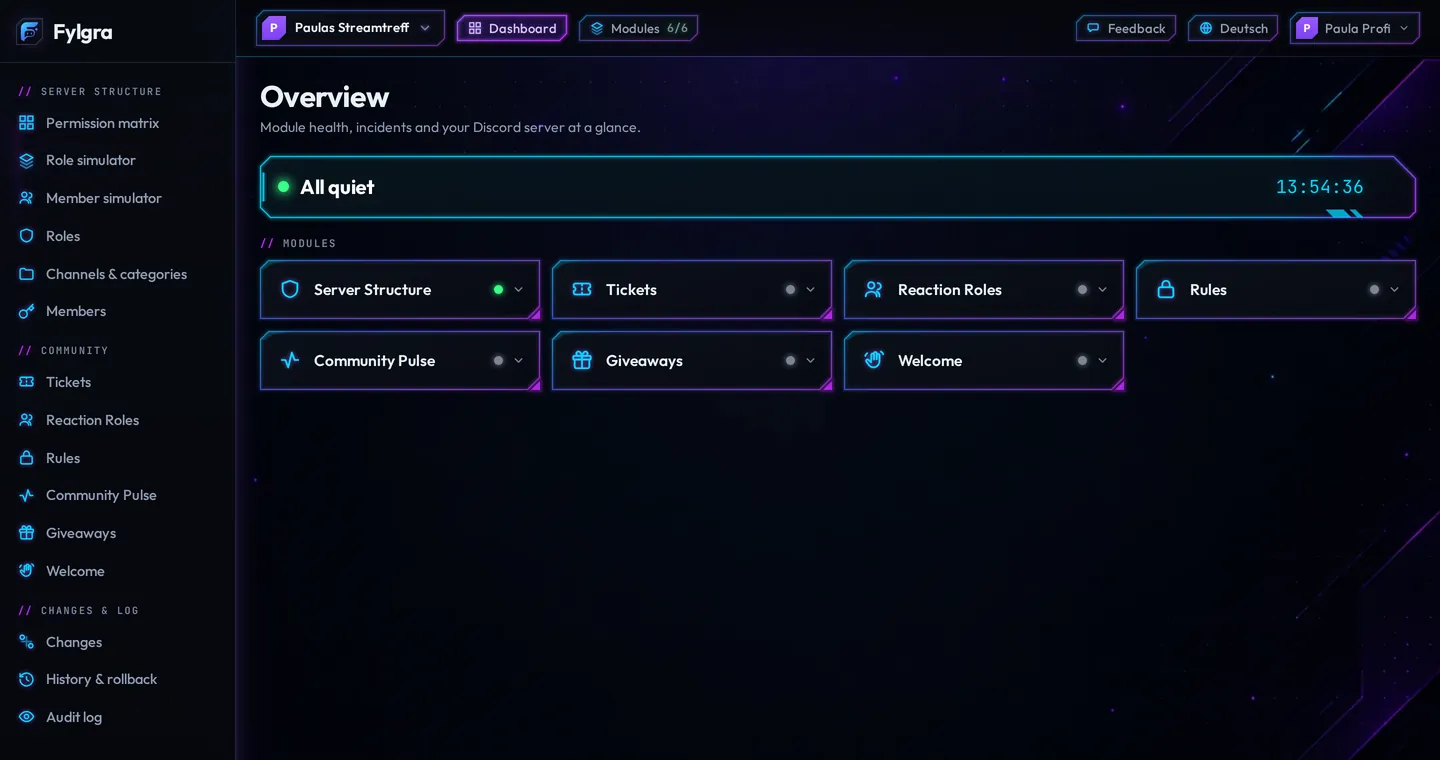
Module health, incidents and your Discord server at a glance.
The home page with several modules switched on.
Four of them you can look at right here: a click on the card opens up how it actually looks in the dashboard and in Discord.
You create your own ticket types, each with its own form, its own people in charge and a private channel per ticket. Whether you reply in Discord or in the dashboard makes no difference: it's the same thread.
Polls and date-finding run as an ordinary Discord poll in the channel. In the dashboard you still see the result weeks later.
Prepare a post, a poll or an event at your own pace and set a time. Fylgra publishes it then, even if none of you happen to be online.
How many people join in, on which days your server is busiest and who stays after joining. You see numbers, never message content. With Pro the insights go a lot deeper, down to a list of the most active members that only admins see.
dashboard · active poll
dashboard · scheduled entry
A click on one of the buttons opens a private channel in Discord. Your team takes over from there, in Discord or in the dashboard, always in the same thread.
discord · panel message and form
a click on “Report a bug” opens the form on the right
What's it about?
What did you do last?
Affected area
Screenshot
dashboard · setup assistant
creates the panel message from “In Discord”
Editing “Report a bug” – step 4 of 4
ticket history · discord ↔ web
How much happens on your server, when and where. Per-member counting only runs while the module is on, and every member can view and switch it off in Discord with /pulse tracking (/pulse erfassung in some languages).
Times in your time zone (Europe/Berlin)
Times for a single channel: choose a channel in the lists below.
The busiest channels in this period. You can swap any line for another channel.
Busiest day: Sat, 22/08/2026 (402)Busiest month: August 2026 (5,040)
Sample after one year. Fylgra counts from the day it joins your server, even without Pro. The year view grows up to 13 months.
Only visible to admins and to anyone they give the “See top members” permission. Members who switched off their counting don't appear.
CSV sits at the top next to the period: this period's channel figures as a table, with no data on individual members.
With /pulse me, /pulse channel and /pulse server (ich and kanal in some languages) you get the numbers as an image right in Discord. At first only the person who asked sees the card. “Share in channel” has Fylgra post it in the channel without pinging anyone, naming only channels everyone there can see. You pick the period freely, from 7 days through last week or last month up to 180 days, always compared with the one before. The server picks the style: Fylgra, Cyberpunk or Neon.
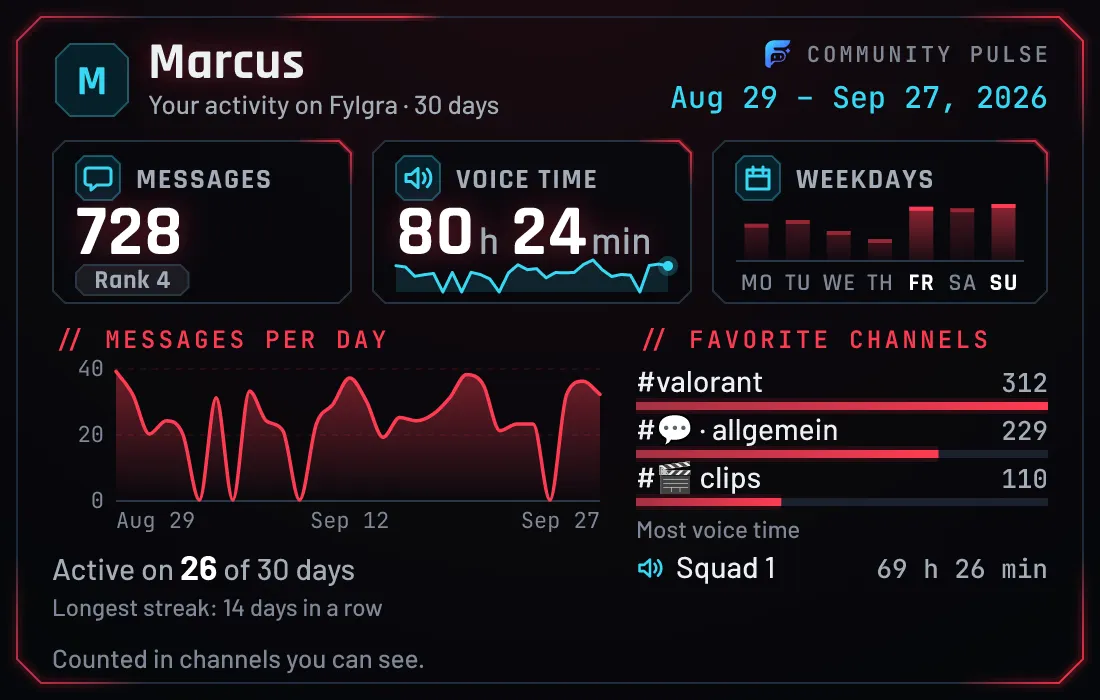
/pulse me · Style CyberpunkYour own activity. Every member can ask for it.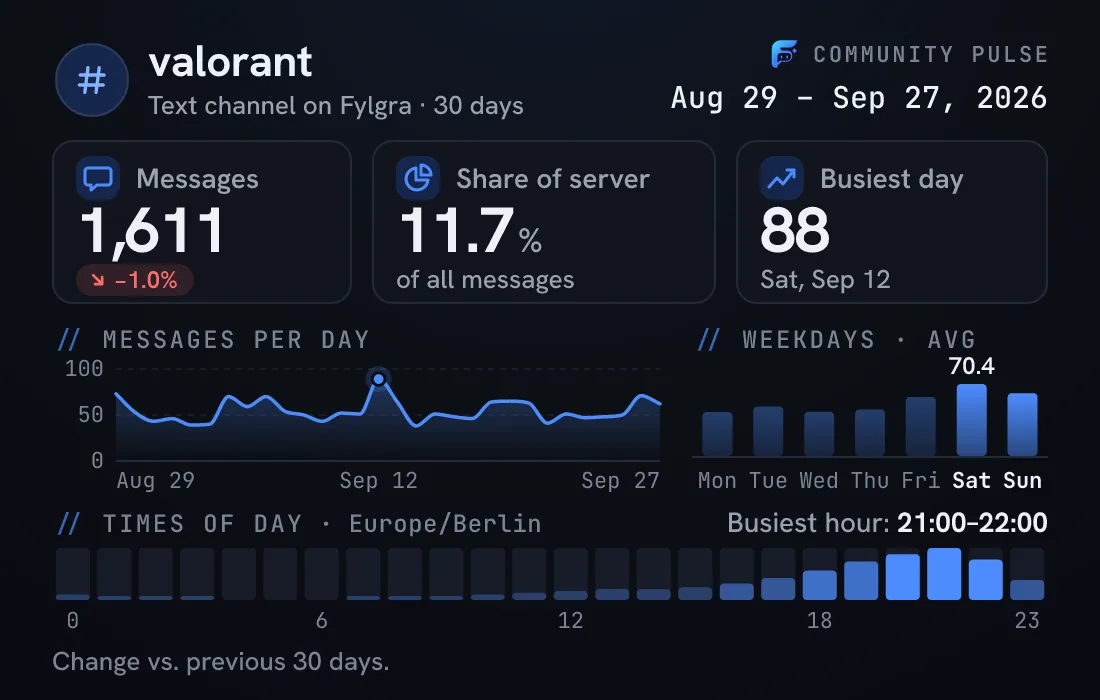
/pulse channel · Style FylgraOne channel over the period, with its share of the server and the busiest hours. For admins and everyone allowed to view Community Pulse.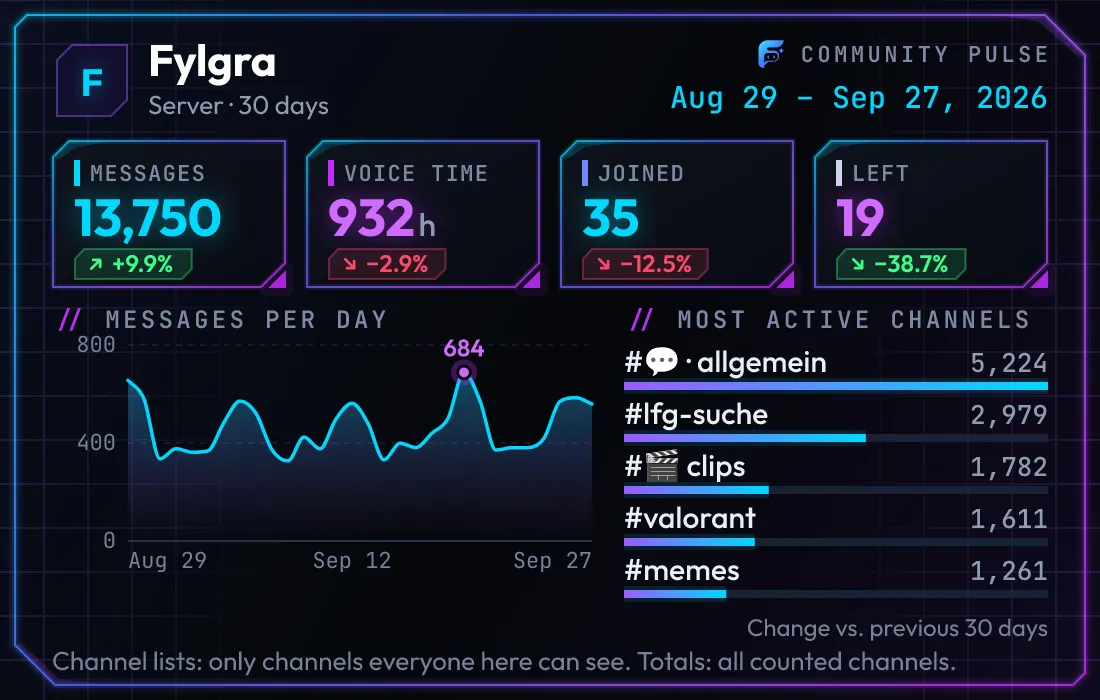
/pulse server · Style NeonThe whole server, the way it looks when shared: no individual members' names unless the server allows it.Example cards with made-up data, rendered by Fylgra itself. Click one to see it large.
Next to the default dark blue there's now Cyberpunk, with bevelled frames and red light over a city at night, and Neon with glowing violet-blue edges. You pick yours in your profile under “Appearance”; the choice applies to the browser you make it in.
// Security
Fylgra may change the roles and channels of your server and throw members out. That's a lot of trust for a bot you're seeing for the first time. So this is where it says what each single permission is needed for, before you grant it. Fylgra only asks for what it uses itself.
What Fylgra doesn't do: it sends no voice messages, joins no voice channel, creates no webhooks, and changes your server settings only when you click (see “Welcome”). The greeting for new members mentions only the newcomers themselves, and only if you set it up that way.
Fylgra doesn't ask for Administrator when you invite it. Only for certain actions – ticking “Administrator” on a role, or restoring a role with the Administrator permission from a backup – can you give it to Fylgra yourself; the dashboard shows you the link right there. Channels your channel permissions don't let Fylgra see, it can't manage either.
Discord only lets a bot give a role the permissions it holds itself. If you want to give a role a permission in the dashboard that Fylgra doesn't have, or restore a role with the Administrator permission with backups & templates, Fylgra shows you right there what's missing. You can then tick it in Discord yourself, or give Fylgra's own role the missing permission under Server Settings → Roles. If you invited Fylgra before, it keeps the permissions it had.
Fylgra only ticks “Administrator” on a role when the server owner or someone who is an administrator themselves does so in the dashboard, just like in Discord. Moderators with Fylgra access grants never can.
A role anyone can give themselves at the press of a button is a different thing from one a moderator hands out by hand. So Fylgra checks every role before it even appears in the picker. Never handed out: @everyone, roles managed by Discord or another app, roles that sit above Fylgra itself in the role list, and every role with far-reaching permissions – Administrator, Manage Server, Manage Roles or Manage Channels, Ban Members or Kick Members, Manage Webhooks, Mention @everyone.
And anyone who kicks, bans or grants a role from the dashboard has to be allowed to do it in Discord anyway, and has to sit above that person in the role list. Nobody can edit themselves or the server owner. So Fylgra gives nobody more power than they already have in Discord.
// Progress
One module after another. Each one runs for a while in the daily life of a real server before the next one starts.
You invite the bot, sign in with Discord, and the Setup Assistant walks you through setup. If you'd rather look first, click through the demo, no sign-in needed.
Most of it is free. Pro unlocks deeper insights, a longer history, more you can undo and higher limits, for example for more servers and ticket panels. You see what it costs and where the limits are in the dashboard after signing in, before you buy anything.
Fylgra only asks for the permissions it uses when you invite it – no Administrator. Which ones, and what for
Important after inviting: in Discord, drag Fylgra's role all the way to the top under Server Settings → Roles. Discord places a new bot's role at the very bottom at first, and a bot may only manage roles and members that sit below its own role.
Fylgra is new and grows every day. Tell me what you notice, whether it's a bug, a wish or praise: once Fylgra is on your server, in the dashboard under “Feedback”, otherwise by email at fylgra@fylgra.com.