
Basics
Discord: let members pick their own roles (reaction roles)
Marcus · builds Fylgra ·
In short
On a Community server, Discord lets members pick their own roles through Onboarding questions you set up in Server Settings. Without a Community server there's nothing built in, so you need a bot with reaction roles.
Opens “Add modules” with Reaction Roles on your server. You'll sign in with Discord first.
What this is about
Members should be able to give themselves roles, for example for games, notifications or pronouns. Many people search for "reaction roles" for this: roles you pick up yourself via a reaction, a button or a drop-down menu.
A role in Discord is a group you give permissions to and assign members to. Discord itself only offers self-selection on a Community server, through Onboarding. These are questions new members answer when they join, and each answer can give roles. Without a Community server, you assign roles by hand or use a bot.
How to do it in Discord
The steps apply to Discord on a computer and in the browser.
With Onboarding (Community server)
Click the server name at the top left and choose Server Settings.
If your server isn't a Community server yet, choose Enable Community on the left and follow the steps. Only the server owner or someone with Administrator can do this.
Choose Onboarding on the left.
Set the Default Channels every new member sees. Discord tells you which requirements they have to meet.
Click Add a question, for example "Which games do you play?", and add answers, such as one per game.
For each answer, pick the role a member gets with it.
If every new member should answer, turn on Required.
Save, then switch Onboarding on with Enable Onboarding.
Members can change their answers later themselves, at the top of the channel list under Channels & Roles.
By hand (any server)
Right-click the member in the member list › Roles › tick the role. This works on any server, but you assign every role yourself.
How to tell it worked
Have a test account join, or pick an answer under Channels & Roles. The new role then shows in the member's profile.
Common pitfalls
Not a Community server. Onboarding only exists there. When you enable it, Discord asks for a verification level, a filter for explicit media, and a rules channel and an updates channel, among other things.
The role gives too many permissions. Every member can pick up a self-selectable role. Don't give it permissions like Administrator, Manage Roles or Ban Members. Roles without permissions of their own are safest.
The role doesn't unlock a channel. Which channels it makes visible is something you set in the channel permissions, see Make a Discord channel visible only to certain roles.
A bot doesn't assign the role. Its role has to sit above the roles it should assign, see Discord bot can't assign a role – how to fix it.
With Fylgra
If Onboarding is enough for you, you don't need Fylgra for this. Fylgra's Reaction Roles module helps without a Community server or if you want to offer the choice in a channel. For this, Fylgra posts a panel, a message members use to pick up roles.
If the module is missing, add it under Modules › Add modules.
Open Reaction Roles, click Assistant and then Let's go.
Under Basics, choose the channel, title, Style and Mode.
Under Roles, add the roles with Add role.
Check the Preview and click Create panel.
Click Publish now.
The styles are Buttons, Dropdown and Reactions. The mode decides whether members can give a role back (Add and remove yourself), can only hold one role from the panel (Only one from this panel) or keep it (Grant only, no way back).
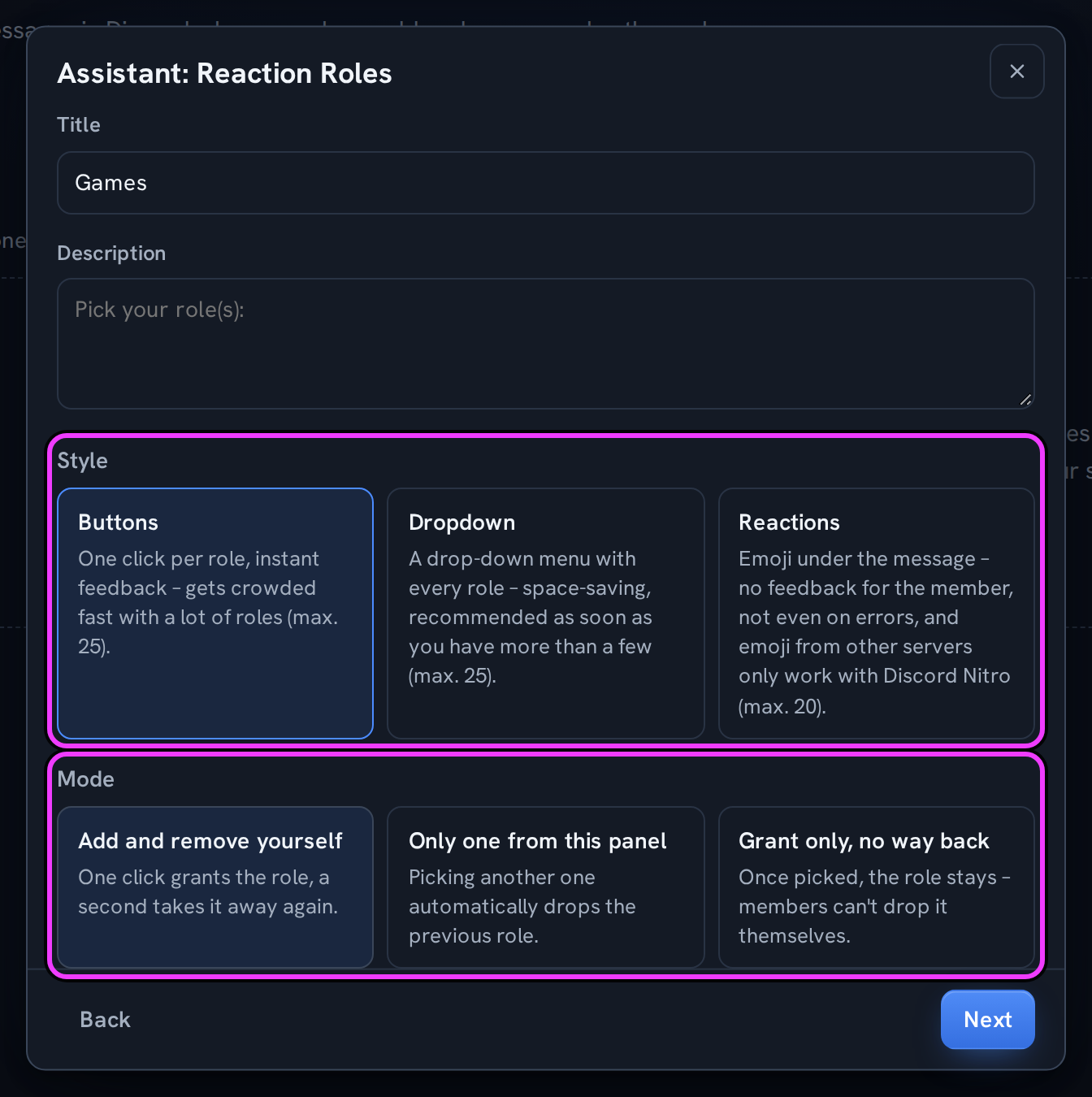
Fylgra's role has to sit above the panel's roles, and Fylgra needs Manage Roles. Roles with far-reaching permissions, @everyone and roles managed by Discord are listed under Can't be assigned.
Members only see the panel with Read Message History in the channel, even if they can see the channel itself.
With Buttons and Dropdown, Fylgra replies after every click, visible only to that person. With Reactions, there's no reply in the channel. If something goes wrong, Fylgra tries a direct message.
The server owner, everyone with Administrator or Manage Server in Discord, and everyone with the Fylgra access grant Manage for Reaction Roles can set it up.
Not working?
Still stuck? Write to me – I'll help. Send a report or email fylgra@fylgra.com
Related articles
- Discord bot can't assign a role – how to fix it Discord know-how
- Make a Discord channel visible only to certain roles Discord know-how
- Set up Discord rules and make members accept them Discord know-how
- Set up Twitch live notifications in Discord Discord know-how