
Basics
Set up Twitch live notifications in Discord
Marcus · builds Fylgra ·
In short
Discord doesn't post in a channel by itself when you go live on Twitch. Without a bot, you post the live notification by hand in a channel of its own and mention a role that interested members pick up. Posting automatically when the stream starts only works with a bot.
Opens “Add modules” with Live announcements (Twitch) on your server. You'll sign in with Discord first.
What this is about
You stream on Twitch and want your community in Discord to know when you go live. Discord has no built-in Twitch notification that posts in a channel when your stream starts. By hand, it still works well:
a channel of its own for live notifications,
a role that interested members pick up, for example "Live-Ping",
and a short message mentioning that role every time you go live.
A role in Discord is a group of members. If you mention it with @, everyone with that role gets a notification, and nobody else.
How to do it in Discord
The steps apply to Discord on a computer and in the browser.
Create the live role
Click your server's name at the top left and choose Server Settings › Roles.
Click Create Role and enter "Live-Ping" as the Role name.
Leave Allow anyone to @mention this role off. Otherwise any member can ping everyone interested.
Click Save Changes.
You assign the role by right-clicking the member › Roles › Live-Ping. It's more convenient if members pick it up themselves, see Discord: let members pick their own roles (reaction roles).
Create a channel for live notifications
In the channel list, click the + next to a category, choose Text, enter "live" and click Create Channel.
Right-click #live and choose Edit Channel › Permissions.
Under Advanced permissions, pick @everyone and click the red cross next to Send Messages. That way only live alerts end up there.
Click + above the list of roles and pick yourself or your streamer role. Click the green tick next to Send Messages and Mention @everyone, @here, and All Roles. This lets you mention "Live-Ping" even though others can't.
Click Save Changes.
Post every time you go live
Start your stream and write a short message in #live with the role and your Twitch link:
@Live-Ping I'm live now! 🎮 Today: [stream title]
https://www.twitch.tv/[your-channel]
Discord usually shows a preview of your channel below the link.
Also: link Twitch to your Discord account
Under User Settings › Connections, you can link your Twitch account to Discord. While you're streaming, Discord can then show this in your profile and in the member list. It doesn't replace the notification in the channel.
How to tell it worked
Your message with the link is in #live. Everyone with "Live-Ping" got a notification, nobody else did.
Common pitfalls
The mention doesn't ping anyone. You're missing Mention @everyone, @here, and All Roles in the channel, see step 4 for the channel.
You forget to post. That's the limit of doing it by hand. Keep the template handy, or use a bot that posts by itself when the stream starts.
Members still don't get anything. Anyone who has muted the channel or turned on Suppress All Role @mentions in their notification settings won't get a notification. Only each member can change that.
@everyone instead of a role reaches everyone but gets annoying fast, and people mute the server.
With Fylgra
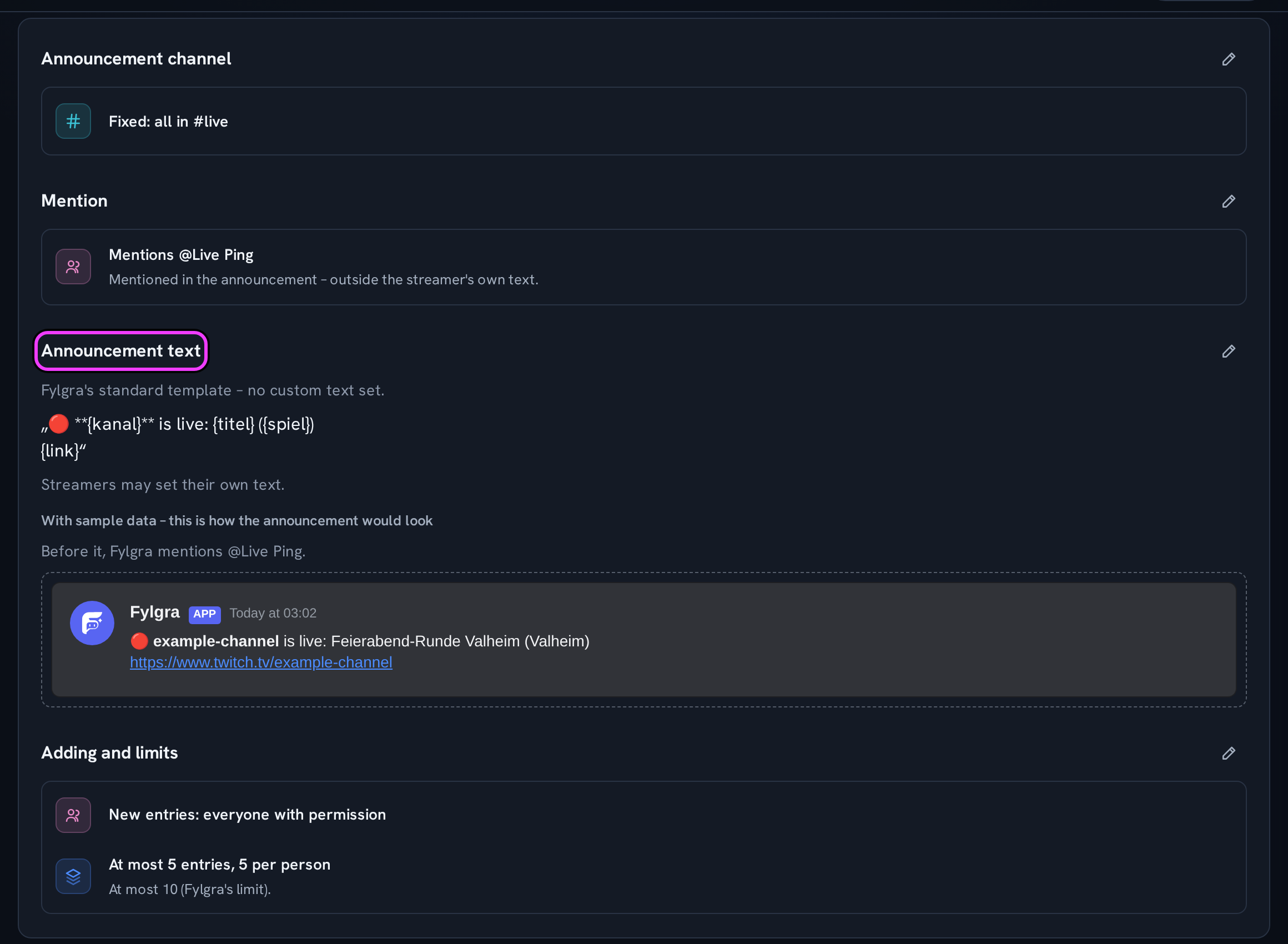
Fylgra takes the posting off your hands. With the Twitch module, Fylgra posts in Discord by itself as soon as Twitch reports that a listed channel is live. In the sidebar, it's called Live announcements.
In the Settings tab, you pick the Announcement channel, under Mention a Role to ping if you like, and adjust the Announcement text with placeholders: {kanal} (channel name), {titel} (stream title), {spiel} (game) and {link}. Only server admins can set the role to ping.
You add your own channel with Add channel › My channel, after connecting Twitch in your Fylgra profile under Connections. For this you need the Fylgra access grant Announce own channel. Other streamers' channels can be added by anyone with Add other channels.
Fylgra only reports Twitch, and only the start of a stream, not the end. If you start again within two hours of an announcement, there's no second one. The live role and who gets it stay up to you.
Fylgra needs Send Messages in the announcement channel. If you've denied it for @everyone there, add Fylgra's role in the channel's permissions and give it the green tick.
Add the module under Modules › Add modules and open Live announcements.
Not working?
Still stuck? Write to me – I'll help. Send a report or email fylgra@fylgra.com
Related articles
- Discord: let members pick their own roles (reaction roles) Discord know-how
- Make a Discord channel visible only to certain roles Discord know-how