
Basics
Set up Discord rules and make members accept them
Marcus · builds Fylgra ·
In short
Create a rules channel where only your team can write, and post your rules there. To make members accept them, use Server Rules in Discord: you add them in Server Settings under Access (on some servers only after enabling Community), and new members have to agree before they can chat.
Opens “Add modules” with Rules on your server. You'll sign in with Discord first.
What this is about
New members should see the rules before they get going, and ideally confirm they've read them. Many people also want the rest of the server to become visible only after members agree.
Discord gives you a rules channel you create yourself, and Server Rules: a rules check new members have to agree to before they can write. Older Discord help pages name a Community server as a requirement for this. Whether you can use it shows in Server Settings under Access.
How to do it in Discord
The steps apply to Discord on a computer and in the browser.
1. Create a rules channel
Click the plus next to a category in the channel list.
Choose Text, enter a name such as "rules" and click Create Channel.
Hover over the channel, click the cog (Edit Channel) and choose Permissions.
Under Advanced permissions, pick @everyone, the role every member has. Set Send Messages to denied (red cross).
Check that View Channel and Read Message History aren't denied. Neutral is enough.
Click Save Changes and write your rules in the channel.
Without Read Message History, new members see the channel but not the rules in it, because those were posted before they joined.
2. Make members agree with Server Rules
Open Server Settings › Access.
At the top, check How can people join your server?. Server Rules are available with Invite Only (the default) and Discoverable. If Apply to Join is selected and you switch, applications are turned off.
Turn on Server Rules.
Enter your rules below the switch. Use Add a rule to add more.
Click Save Changes.
If Invite Only or Discoverable is selected and there's still no Server Rules switch, choose Enable Community on the left and follow the steps. Only the server owner or someone with Administrator can do this. Then open Access again.
New members then see the rules first. Only after agreeing can they write and react.
How to tell it worked
Join with a test account. The rules are in the rules channel, and writing there doesn't work. With Server Rules on, the account is asked to agree first and can't write anywhere until then.
Common pitfalls
Server Rules don't give a role. They only block taking part. To make channels visible only after agreeing, you need a role that new members only get afterwards. On a Community server, a required question in Onboarding whose answer gives a role does that, see Discord: let members pick their own roles (reaction roles). Otherwise you need a bot.
Two checks in a row. If you use Server Rules and also a bot with a consent button, new members agree twice. Usually one of the two is enough.
New members don't see the rules. Check Read Message History for @everyone in the rules channel.
Rules changed. Change them in the rules channel and under Access › Server Rules, otherwise new members read two versions.
In older guides, Server Rules are called "Rules Screening".
With Fylgra
If Discord's Server Rules are enough for you, you don't need Fylgra for this. Fylgra's Rules module helps if channels should only become visible after members agree, or if you can't find Server Rules under Access. Fylgra posts your rules in a channel and keeps them up to date. If you like, a button goes underneath, labelled "I agree" by default. Whoever presses it gets a role.
If the module is missing, add it under Modules › Add modules.
Open Rules, click Assistant and then Let's go.
Under Basics, choose the channel and enter a title.
Write your rules under Sections.
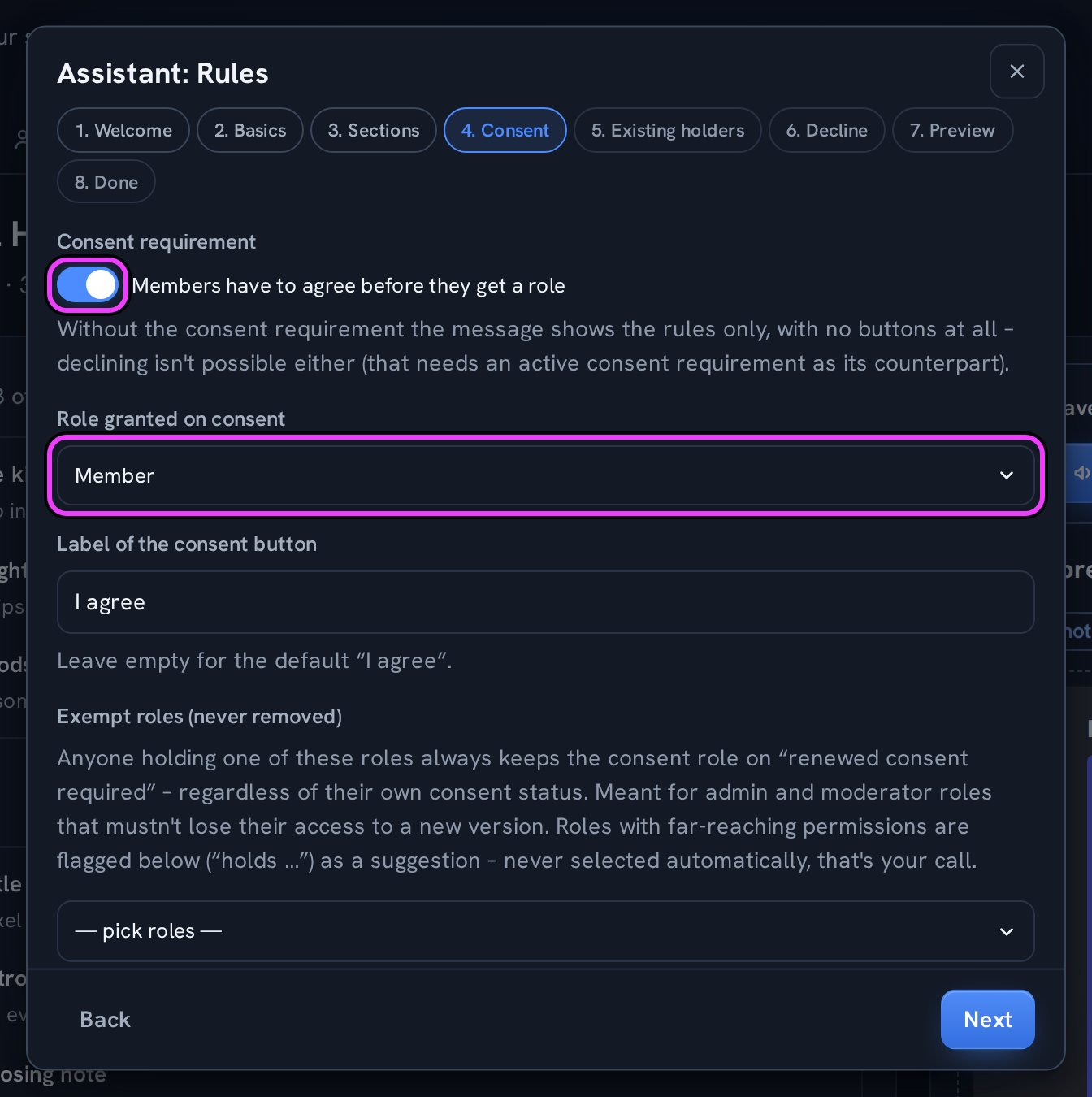
Under Consent, turn on the consent requirement and pick the Role granted on consent.
Click Next until you reach Preview, click Save there, and then Publish under Done.
To make the server visible only after members agree, @everyone only sees the rules channel and the consent role sees the rest. In Fylgra, you set that up under Roles & permissions › Channels & categories in the channel's details with Apply preset … › Restricted, see Make a Discord channel visible only to certain roles. The Rules module itself doesn't change any channel permissions.
Everyone who agreed is listed in the Consents tab. If you change the rules with Renewed consent required, everyone who hasn't agreed to the new version yet loses the role, unless they have an exempt role. Anyone who agreed to the current version, leaves and comes back gets the role back automatically.
Limits: the role granted on consent has to sit below the "Fylgra" role and mustn't carry far-reaching permissions, see Discord bot can't assign a role – how to fix it. Everyone needs Read Message History in the rules channel, otherwise new members see neither the rules nor the button.
The server owner, everyone with Administrator or Manage Server in Discord, and everyone with the Fylgra access grant Manage for Rules can set it up.
Not working?
Still stuck? Write to me – I'll help. Send a report or email fylgra@fylgra.com
Related articles
- Make a Discord channel visible only to certain roles Discord know-how
- Discord: let members pick their own roles (reaction roles) Discord know-how
- Discord bot can't assign a role – how to fix it Discord know-how
- Set up a Discord welcome message for new members Discord know-how