
Basics
Set up a Discord ticket system for support
Marcus · builds Fylgra ·
In short
Discord has no built-in ticket system. The closest thing is private threads: members open a private thread in a support channel, and your team sees all these threads with the Manage Threads permission. If you only get a few requests, a private channel per request works too.
Opens “Add modules” with Tickets on your server. You'll sign in with Discord first.
What this is about
Some requests don't belong in the public chat, such as a report about someone. A ticket system collects them, and only the person and your team see them.
With built-in tools there are two ways:
Private threads (side conversations under a channel) in a support channel. Only the people in a private thread and everyone with Manage Threads can see it. Members open it themselves.
A private channel per request, created by hand. This suits servers with few requests.
How to do it in Discord
The steps apply to Discord on a computer and in the browser. Your support team needs a role of its own, for example "Support".
Option 1: support channel with private threads
Create a text channel "support" with the + in the channel list.
Right-click #support and choose Edit Channel › Permissions.
Under Advanced permissions, pick @everyone. Click the green tick next to Create Private Threads and Send Messages in Threads.
Click the red cross next to Create Public Threads, otherwise requests end up public by mistake. Do the same for Send Messages.
Click + above the list of roles and pick Support. Click the green tick next to Manage Threads and Send Messages. This lets your team see every private thread in this channel.
Click Save Changes.
Post short instructions in #support and pin them (right-click › Pin Message).
Need help from the team?
1. Click the threads icon at the top of this channel, then "Create".
2. Give your request a short name and turn on "Private Thread".
3. Describe what you need.
Only you and the support team can see the thread.
Your team finds all threads, including private ones, via the threads icon at the top of #support. It closes finished ones with right-click › Close Thread. If the member writes again, the thread reopens, unless it's locked with Lock Thread.
Option 2: a private channel per request
Prepare once:
Create a category called "Tickets" (right-click in the channel list › Create Category), then right-click it and choose Edit Category › Permissions.
Add the Support role with +. Next to View Channels, click the red cross for @everyone and the green tick for Support.
Click Save Changes.
For each request:
With the + next to the "Tickets" category, create a text channel, for example "ticket-mia". It takes over the category's permissions.
Under Edit Channel › Permissions, add the member with +.
Click the green tick next to View Channel, Send Messages and Read Message History, then save.
When the request is done, delete the channel.
How to tell it worked
Ask a member without a team role to open a private thread in #support. Only your team sees it.
Common pitfalls
The team doesn't notice new requests. A new private thread doesn't necessarily notify the team. Check the thread list regularly, or ask members to mention @Support. That works with fewer than 100 members in the role and Allow anyone to @mention this role – but then anywhere.
The Private Thread switch is missing. For a long time, Discord only offered private threads on servers with Boost Level 2. Use option 2 then.
Members can't open a thread. Usually View Channel is missing for @everyone, or the category denies View Channels.
Old requests disappear from the list. Discord closes inactive threads. You set when under Edit Channel with Hide After Inactivity.
With Fylgra
You don't need Fylgra for simple support. Tickets takes the manual work of option 2 off your hands:
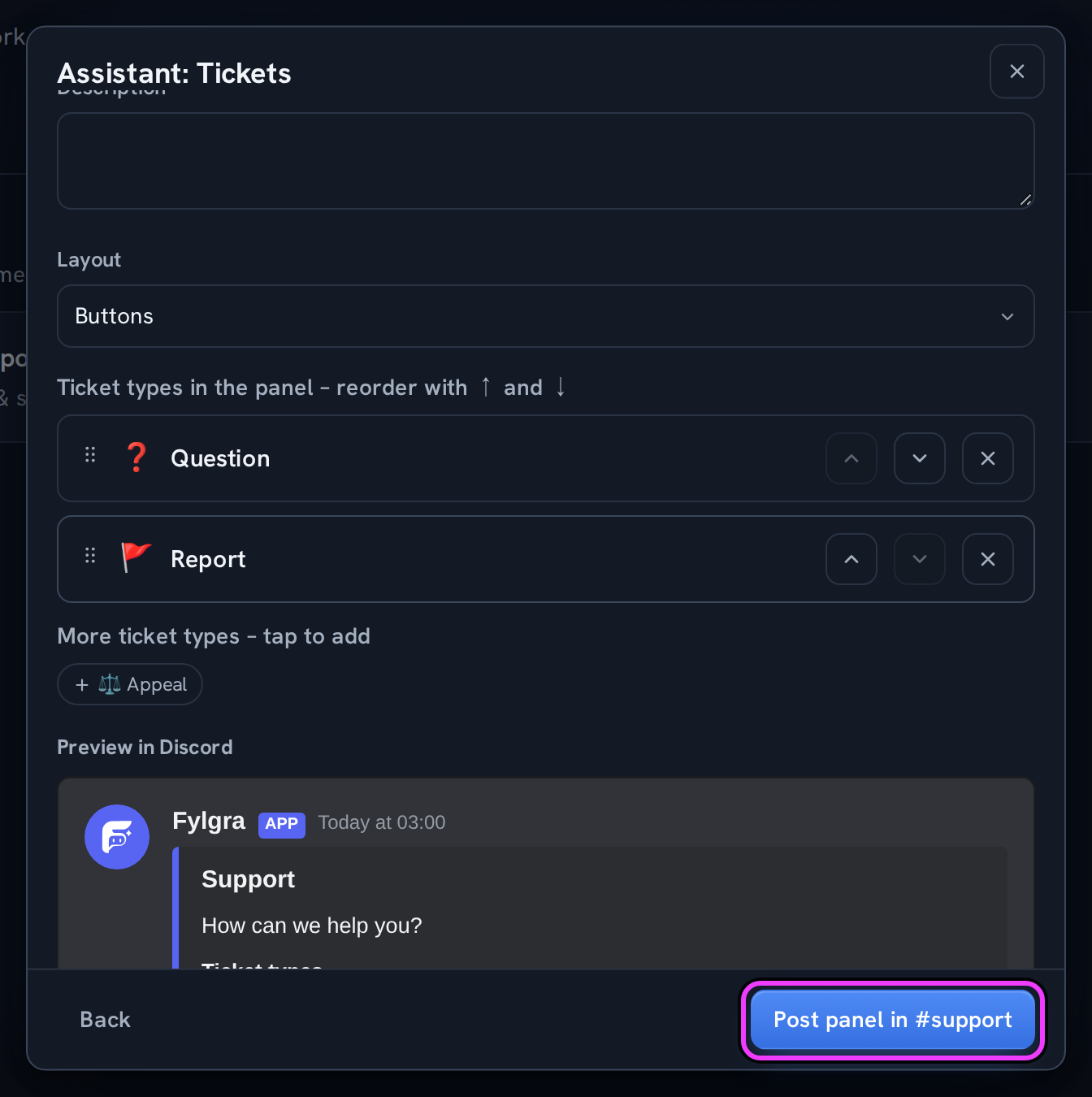
Fylgra posts a panel in a channel. Members open a ticket there themselves. For each ticket type, you set the Questions when opening.
For every ticket, Fylgra creates a private channel in a category that only the person, the Support roles of that type and members with Administrator can see.
Your team claims tickets and writes internal notes, in Discord or on the web. After closing, Fylgra can delete the channel; the history stays on the web.
In the ticket category, Fylgra needs View Channels and Manage Channels, and Send Messages in the panel's channel. If you've stopped @everyone from writing there, allow it for Fylgra's role. Members need Read Message History in the panel's channel, otherwise they don't see the panel.
The server owner and everyone with Administrator or Manage Server can set it up. Add the module under Modules › Add modules, open Tickets and click Assistant.
Not working?
Still stuck? Write to me – I'll help. Send a report or email fylgra@fylgra.com
Related articles
- Make a Discord channel visible only to certain roles Discord know-how
- Discord moderator permissions without Administrator Discord know-how