
Basics
Discord moderator permissions without Administrator
Marcus · builds Fylgra ·
In short
Create a separate role for moderators and give it only the permissions they really need, such as Timeout Members, Manage Messages and Kick, Approve, and Reject Members. Don't give Administrator: it unlocks every permission and overrides every channel restriction.
Opens “Roles” on your server. You'll sign in with Discord first.
What this is about
Administrator is quickly ticked, but risky: it unlocks every permission and overrides every channel restriction. If such an account gets hijacked, your server is wiped in no time.
A separate role for your moderation team is better. A role in Discord is a group you give permissions to and assign members to. The mod role only gets what moderators need.
How to do it in Discord
The steps apply to Discord on a computer and in the browser.
1. Create the role
Click the server name at the top left and choose Server Settings › Roles.
Click Create Role and enter a name under Role name, for example "Moderator".
In the Permissions tab, turn on the permissions below.
Click Save Changes.
You can only grant permissions you have yourself.
2. These permissions are enough for most mod teams
Timeout Members – stop someone from writing and speaking for a while.
Manage Messages – delete other people's messages.
Kick, Approve, and Reject Members – remove someone from the server. They can come back with an invite. It also covers join requests.
View Audit Log – look up who changed what.
Manage Nicknames – change inappropriate nicknames.
Depending on your server: Ban Members (only for experienced moderators), Manage Threads and Posts, Pin Messages, and for voice channels Mute Members and Move Members.
Leave these out for moderators:
Administrator – unlocks everything.
Manage Server – name, invites, integrations and more. That's admin work.
Manage Roles – lets someone assign any role below their own, even one with more permissions to themselves.
Manage Channels and Manage Webhooks – delete channels, post under someone else's name.
Mention @everyone, @here, and All Roles – reach everyone with one message.
3. Put the role in the right place
The order of the role list is the rank order. Moderators can only kick, ban or time out members whose highest role sits below the mod role.
Under Server Settings › Roles, drag the mod role above all roles of regular members.
Keep your admin role and your bots' roles above it.
Click Save Changes.
4. Assign the role
Right-click the person in the member list, choose Roles and tick the mod role.
How to tell it worked
Ask a moderator to time out a test account briefly (right-click › Timeout …). On another moderator the entry is missing, as it should be.
Common pitfalls
Timeout or kick doesn't work. The person's highest role sits level with or above the mod role. For timeouts, only the entry is missing. Move the mod role higher or let an admin do it. Nobody can time out members with Administrator.
The moderator can't see a channel. Channel permissions can deny role permissions. Allow the channel for the mod role, see Make a Discord channel visible only to certain roles.
Someone still has an old role with Administrator. The permissions of all roles add up. Remove Administrator wherever it isn't needed.
Permissions set in a channel. Timeout, kicking, banning and the audit log only work as server permissions on the role.
With Fylgra
You don't need Fylgra for this. It helps with setting up and checking, using the same Discord permissions.
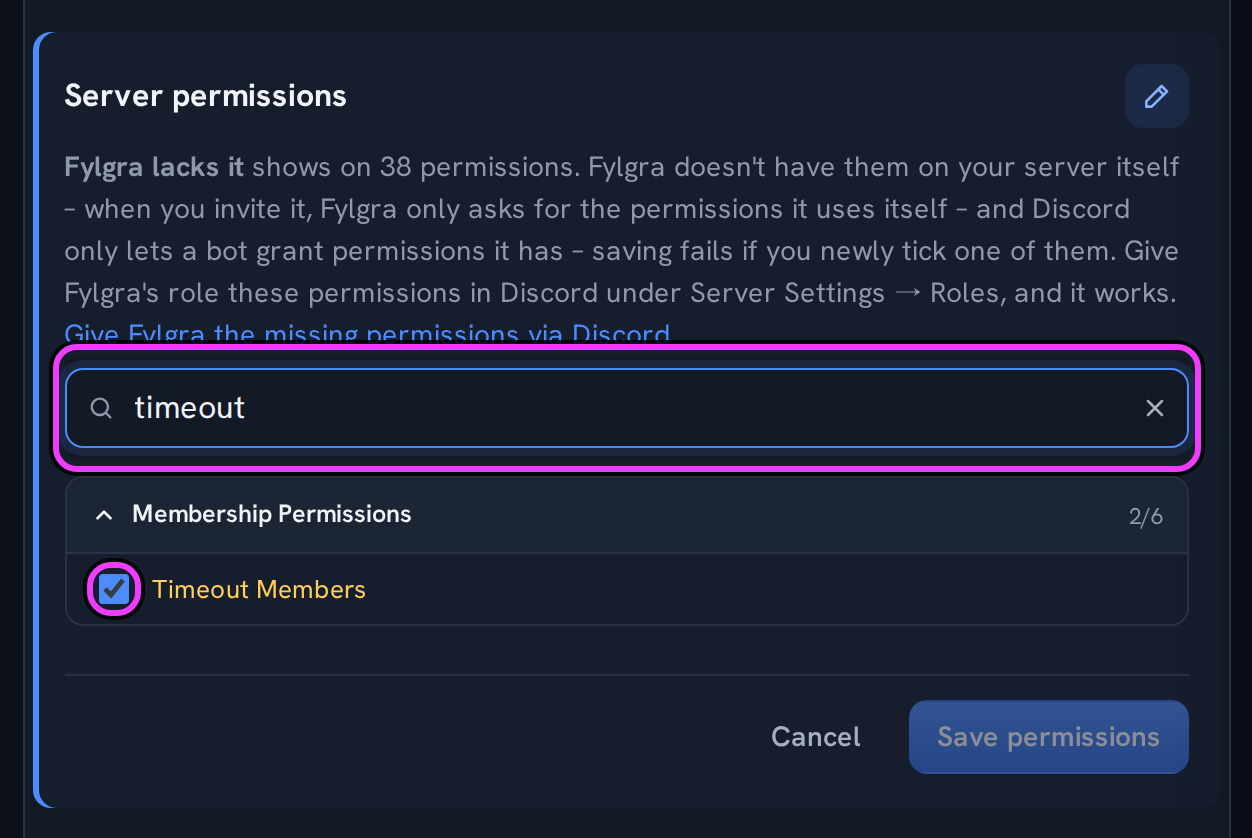
Edit a role: Under Roles & permissions › Roles, click the role. Its details open next to the list, or on smaller screens instead of it. Click the pencil at Server permissions, find the permission with Search permissions and click Save permissions. If Fylgra lacks it appears next to it, set it yourself in Discord.
Check: The Simulator tab, with Role, shows the server as the mod role sees it.
Administrator notice: The Overview shows a notice for each role with Administrator. If that's intended, click As intended. To undo, open the role's details and click Withdraw confirmation under Confirmations.
Discord permissions count in Fylgra too: Anyone with Kick, Approve, and Reject Members, Ban Members, Timeout Members or Manage Nicknames sees the Members tab. Anyone with View Audit Log sees the Audit log.
Manage Server counts as an admin permission in Fylgra – one more reason not to give it to moderators.
Grant extra access: Under Access, the server owner gives a role rights in individual modules with New access grant, without changing its Discord permissions. A grant applies to every channel, even ones the role can't see in Discord. Exception: for Tickets, the support role counts.
Fylgra doesn't create a mod role by itself. You can only edit roles in Fylgra with Manage Roles or Administrator – the same rule as in Discord.
Not working?
Still stuck? Write to me – I'll help. Send a report or email fylgra@fylgra.com
Related articles
- Make a Discord channel visible only to certain roles Discord know-how
- Discord bot can't assign a role – how to fix it Discord know-how
- Für Mods: verwarnen, Akte ansehen, Verwarnung zurücknehmen Guide · Moderation · German
- Moderation: was das Modul macht und wie du dich zurechtfindest Overview · Moderation · German
- Audit-Log: was drinsteht und wer es sieht Overview · German