
Basics
Create and order Discord roles
Marcus · builds Fylgra ·
In short
Under Server Settings › Roles, click Create Role, set a name, colour and permissions, and save. You change the order by dragging in the same list. The highest role is at the top.
Opens “Roles” on your server. You'll sign in with Discord first.
What this is about
A role is a group for members. It carries a name, a colour and permissions. Every member has @everyone, the server's base role. You add further roles on top, such as "Moderation" or "Regular".
The order of the role list is the ranking, with the highest role at the top. It decides who may manage whom and which colour a member shows. What a role is allowed to do, on the other hand, doesn't depend on its position.
How to do it in Discord
The steps apply to Discord on a computer and in the browser.
Create a role
Click the server name at the top left and choose Server Settings › Roles.
Click Create Role.
In the Display tab, enter a Role name.
Under Role Color, pick a preset or your own colour.
Open the Permissions tab and turn on what the role may do.
Click Save Changes.
Whatever @everyone may do, all members already have. You don't need to give it to the new role again.
You can also set on the role:
Display role members separately from online members: The role gets its own group in the member list.
Allow anyone to @mention this role: Everyone can ping the role.
Role Style with Gradient or Holographic: Only available from 3 server boosts, and only on a computer.
Order roles
New roles sit at the very bottom, directly above @everyone.
Drag the role to its new place in Server Settings › Roles.
Click Save Changes.
A proven order from top to bottom: admins, moderation, bot roles, below them all roles that bots are meant to hand out, and member roles at the very bottom.
What the order does
With Manage Roles you can only edit, sort and assign roles below your own highest role. You can only pass on permissions you have yourself.
Kicking, banning and changing nicknames only works on members whose highest role is below yours.
A member shows the colour of their highest role that has a colour.
For permissions, position doesn't matter. If one role allows something in a channel that another denies there, allow wins, no matter which one is higher.
The server owner can always do everything.
How to tell it worked
Give a test account the role. Its name shows up in the role's colour and, if set, in its own group in the member list. With View Server As Role you see the server the way this role sees it.
Common pitfalls
You can't move or edit a role. It's at the same level as or above your own highest role. Only someone with a higher role, or the owner, can do that.
The order jumps back. After dragging, you didn't click Save Changes.
The colour doesn't show. The member has a higher role with its own colour. Drag your role above it.
A role can't be assigned or deleted. Discord manages bot roles itself. See Discord bot can't assign a role – how to fix it.
You can't add another role. A server can have at most 250 roles.
With Fylgra
You don't need Fylgra for this. It helps when you want to create a role with suitable permissions in one go. You need Manage Roles or Administrator in Discord, otherwise the New role button is missing.
Open Roles & permissions in the sidebar (on a phone: Menu), then the Roles tab.
Click New role.
Enter the role's name under Name.
Pick a Permission preset: Member, Read only, Moderator, Bot / integration or No permissions.
If you like, set Colour, Display members separately and Mentionable.
Click Create role.
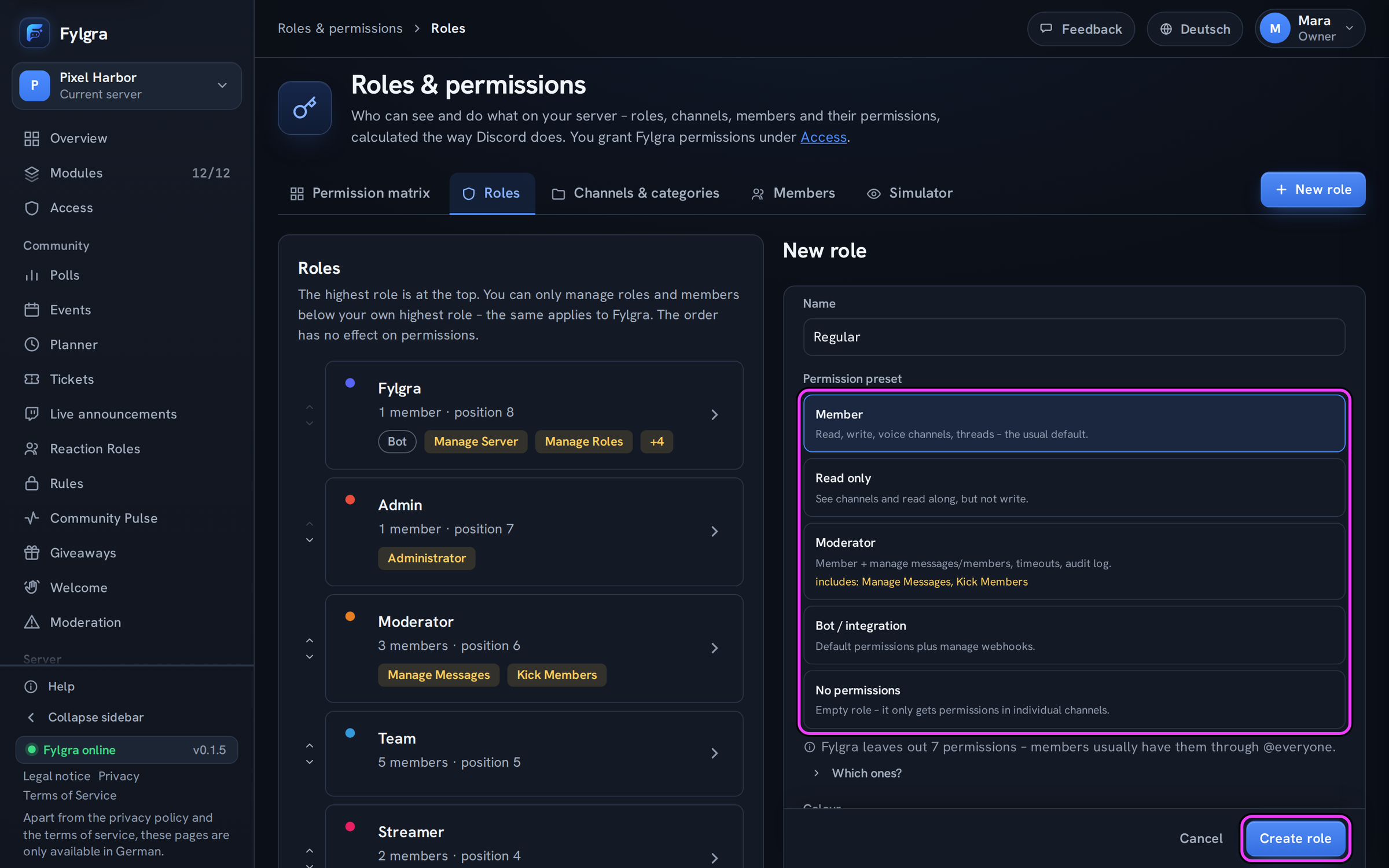
The role goes to Discord right away and sits directly above @everyone. In the list, you move each role one place with the arrows next to its name. That also applies right away, without saving.
Limits: Fylgra only grants permissions it has itself. If it's missing one from the preset, it creates the role without that permission and tells you which one is missing. Fylgra doesn't move bot roles or @everyone. And just like in Discord, Fylgra only changes roles below its own, see fylgra-rolle-nach-oben. Which permissions a moderation role needs is explained in Discord moderator permissions without Administrator.
Not working?
Still stuck? Write to me – I'll help. Send a report or email fylgra@fylgra.com
Related articles
- Discord moderator permissions without Administrator Discord know-how
- Discord bot can't assign a role – how to fix it Discord know-how
- Fylgras Rolle nach oben ziehen Guide · German
- Make a Discord channel visible only to certain roles Discord know-how
- Discord: let members pick their own roles (reaction roles) Discord know-how