
Basics
Discord channel permissions and syncing categories
Marcus · builds Fylgra ·
In short
A synced channel has exactly the permissions of its category and changes along with it. If you change a permission on the channel itself, it's no longer synced. Under Edit Channel › Permissions, Sync Now brings it back.
Opens “Channels & categories” on your server. You'll sign in with Discord first.
What this is about
In Discord you set permissions in two places: on the role for the whole server, and on the individual channel. On the channel you set something different for individual roles or members, such as "can't write here".
A category is a folder for channels. Its permissions are a template: a synced channel has exactly the permissions of its category. When you change the category, all synced channels change with it.
How to do it in Discord
The steps apply to Discord on a computer and in the browser.
Set permissions on the category
Right-click the category name and choose Edit Category › Permissions.
Under Advanced permissions, click + above the list of roles and pick the role.
For each permission, set the tick (allowed), the slash (neutral) or the X (denied). Neutral means: the role sets nothing here. Its server permissions and whatever is set on the channel for @everyone count.
Click Save Changes.
Check whether a channel is synced
Hover over the channel and click the cog (Edit Channel).
Choose Permissions on the left.
At the top it says "Permissions synced with category: …" or "Permissions not synced with category: …". In the second case, Sync Now brings back the category's permissions. The channel's own permissions are then gone.
When a channel stops being synced
You change a permission on the synced channel itself. From then on it no longer follows the category.
You drag it into another category. Discord asks Sync permissions?. If you agree, the channel takes over the new category's permissions. If you decline, it keeps its own and isn't synced.
Which setting wins
For each member, Discord works through this order, and later steps win:
the permissions of @everyone and the member's roles on the server,
what's set on the channel for @everyone,
what's set on the channel for the member's roles,
what's set on the channel for the member personally.
If one role allows something on the channel and another denies it, allow wins. The category isn't a step of its own: what counts is always what's set on the channel. Anyone with Administrator overrides all channel permissions, and the server owner can do everything anyway.
How to tell it worked
The channel says "Permissions synced with category: …". Ask someone with the role in question to check whether they can see the channel and write there the way you want.
Common pitfalls
A change to the category doesn't reach a channel. It isn't synced.
A private channel is suddenly open. You synced it with an open category when moving it.
A role is locked out. A private category takes View Channels away from @everyone. Every role that should get in, including a bot's role, needs it there explicitly.
A role sees the channel but no older messages. It's missing Read Message History.
The permission has a different name on the category. On the channel it's View Channel, on the category View Channels.
With Fylgra
You don't need Fylgra for this. But it shows you at a glance which channels follow their category. You need Manage Channels and Manage Roles, or Administrator, in Discord.
Open Roles & permissions in the sidebar (on a phone: Menu), then the Channels & categories tab.
Every channel in a category is marked follows category or own permissions.
Click a channel marked own permissions. Under Permissions per role, click Follow the category.
Confirm with Sync. This applies in Discord right away.
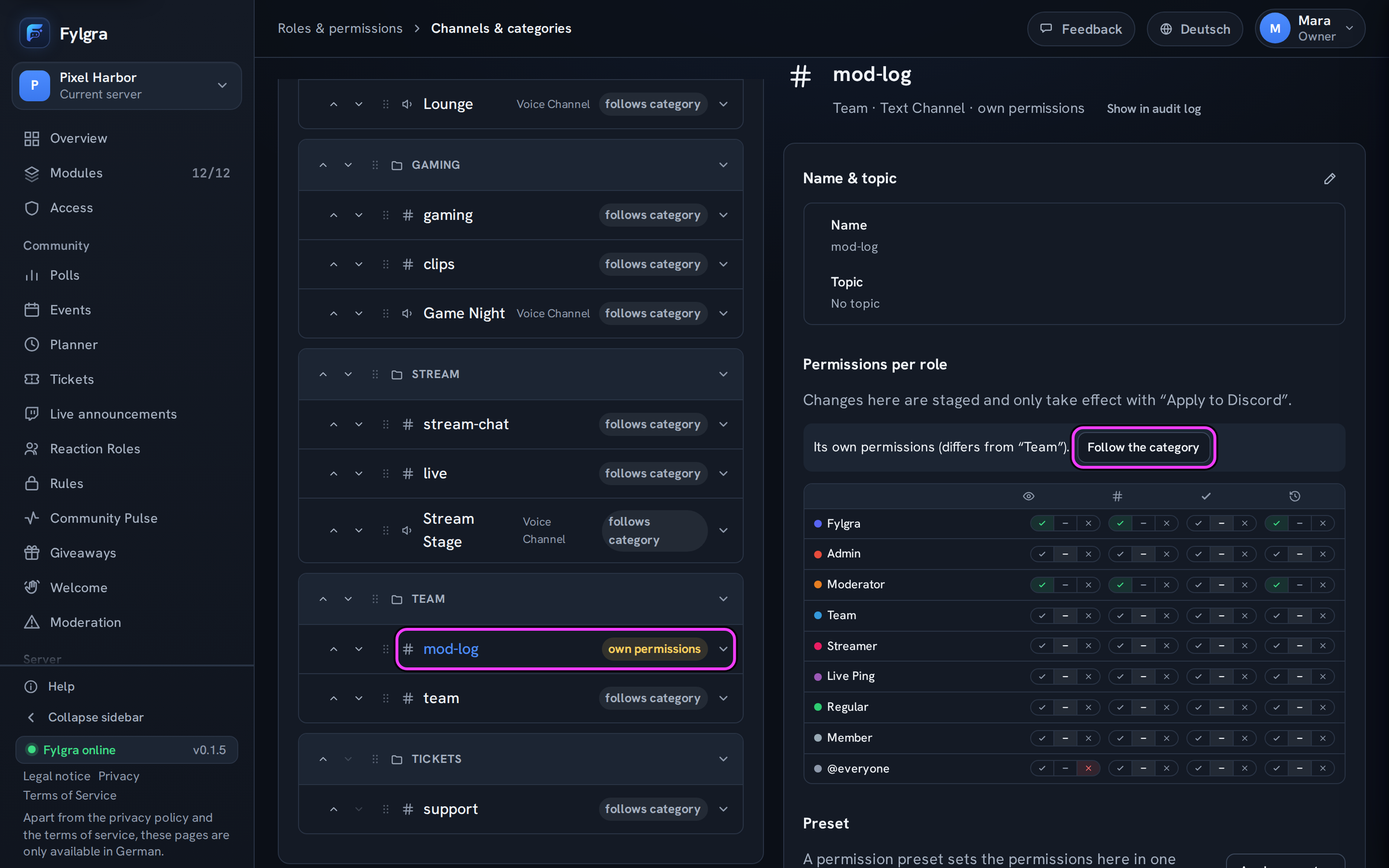
If you move a channel into another category in the list, Fylgra asks: Keep its own permissions or Take over permissions from "…". The new layout only goes to Discord once you click Apply to Discord at the bottom and then Apply.
In the Permission matrix tab you see what applies for every role and channel. Clicking a cell shows the reason and lets you change the permission; this too only takes effect with Apply to Discord. If you change a category, its synced channels change with it. If you change such a channel, Fylgra tells you beforehand that this unlinks it.
Limits: Fylgra only shows channels you can see in Discord yourself. It can only change channels Fylgra itself can see, see Fylgra can't change permissions in a channel.
Not working?
- Fylgra can't change permissions in a channel Troubleshooting · Server Structure
Still stuck? Write to me – I'll help. Send a report or email fylgra@fylgra.com
Related articles
- Make a Discord channel visible only to certain roles Discord know-how
- Discord moderator permissions without Administrator Discord know-how
- Create and order Discord roles Discord know-how