
Basics
Add a bot to a Discord server
Marcus · builds Fylgra ·
In short
Open the bot's invite link or find it under Server Settings › App Directory. Pick your server, click Continue and then Authorize. You need the Manage Server permission on that server.
Opens the page in Fylgra. You'll sign in with Discord first.
What this is about
A bot is a Discord account run by a program. It posts messages, hands out roles or answers commands. Discord now also calls bots apps.
A bot doesn't join your server through a normal invite, but through its invite link or the App Directory. Discord then asks which server the bot should join and which permissions it gets. Only the server owner or someone with Manage Server can add it.
How to do it in Discord
The steps apply to Discord on a computer and in the browser.
Via the invite link
Most bots have a button on their website for adding them. It leads to this link.
Open the invite link. Discord shows "… wants to access your Discord account".
Under Add to server:, pick your server. Some links have already picked it.
Click Continue.
Check the permissions the bot is to get on your server.
Click Authorize.
Via the App Directory
Click the server name at the top left and choose Server Settings › App Directory.
Find the bot and open its profile.
Click Add App and choose Add to Server.
Confirm the server and permissions as with the invite link.
Don't choose Add to My Apps. That way only you use the app with your account, and the server doesn't get it.
Grant permissions with care
Only give a bot the permissions it needs for its job. With Administrator it can do anything, even in channels you've locked for others. You can change its permissions at its role at any time after adding it.
How to tell it worked
Discord reports "… has been authorized and added to …".
The bot is in the member list, with the APP badge.
It's also listed under Server Settings › Integrations › Bots and Apps. There you can see who added it when and which permissions it asked for.
If the bot got permissions, there's a new role with its name.
Common pitfalls
Your server is missing from the list. You don't have Manage Server there. Ask the owner or an admin.
The bot is there but does nothing. Often its role is missing permissions, sits too low, or the bot can't see the channel. See Discord bot can't assign a role – how to fix it and Make a Discord channel visible only to certain roles.
The bot's role can't be deleted or assigned. Discord manages it itself. It goes away when you remove the bot.
Only the developer can add the bot. Some bots aren't public.
No further bot can be added. A server can have at most 50 integrations.
To remove a bot, right-click it in the member list and kick it.
With Fylgra
Fylgra is a bot itself and joins your server the same way. Fylgra gives you the right link and tells you up front which permissions it asks for. That doesn't help with other bots.
Sign in to Fylgra. If you don't have a server with Fylgra yet, you land on your profile right away. Otherwise click your name at the top and choose Profile.
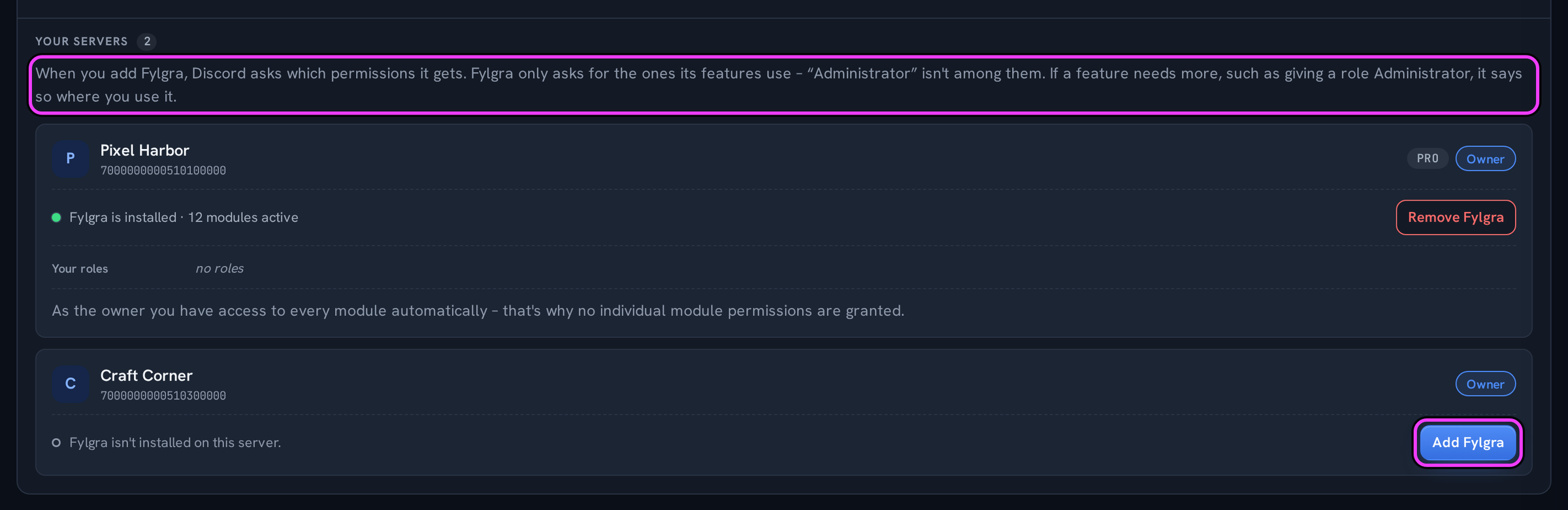
Under Your servers, each of your own servers without Fylgra has an Add Fylgra button. Click it.
Discord opens the window from above with your server already picked. Click Continue and then Authorize.
The server isn't yours, but you have Manage Server there? Then use the Add to Discord button on fylgra.com and pick the server in Discord.
Fylgra only asks for the permissions its features use. Administrator isn't among them. Afterwards Fylgra usually sends you a direct message with a link to Fylgra. If you're the owner, the Setup Assistant opens the first time you visit the server. Its Fylgra's role step shows whether roles sit above Fylgra's role. How to fix that is explained in fylgra-rolle-nach-oben.
How many servers can run Fylgra depends on the server owner's plan. If there's no slot left, your profile warns you beforehand. The new server then stays paused until a slot is free.
Not working?
Still stuck? Write to me – I'll help. Send a report or email fylgra@fylgra.com
Related articles
- Fylgras Rolle nach oben ziehen Guide · German
- Discord bot can't assign a role – how to fix it Discord know-how
- Make a Discord channel visible only to certain roles Discord know-how
- Discord moderator permissions without Administrator Discord know-how