
Basics
Back up your Discord server with built-in tools
Marcus · builds Fylgra ·
In short
Discord has no full server backup. A server template at least saves channels, roles and permissions as a link, without messages and without members. You can only restore the template into a new server, not into your existing one.
Opens “Add modules” with Backups & Templates on your server. You'll sign in with Discord first.
What this is about
A server grows over months: categories, channels, roles, finely tuned permissions. Then someone deletes a category by mistake, or a hacked account wipes the server.
Discord doesn't offer a full backup you can restore to the same server. It does have the server template. It records how your server is built and is a useful partial solution if you know its limits.
How to do it in Discord
The steps apply to Discord on a computer and in the browser.
Create a server template
Click your server's name at the top left and choose Server Settings › Server Template.
Enter a title under Template Title, for example "October snapshot", and a Template Description if you like.
Click Generate Template.
Click Copy next to your link under Template Link. It starts with https://discord.new/. Keep it somewhere safe, for example in a note.
Keep the template up to date
If you change something on the server afterwards, Discord shows a note on the template page saying you have unsynced changes. Click Sync Template under Server Template. The link stays the same, and the old state is gone.
What the server template saves and what it doesn't
It saves categories and channels with their settings and order, the roles' channel permissions, roles with name, colour, permissions and order, and some server settings such as the verification level.
It does not save:
Forum, announcement and stage channels
Messages and threads
Members and who has which role
Bots and their roles, emoji, stickers, webhooks and invite links
The server icon and the Community settings
Channel permissions for individual members
Build a server from the template
When you open the link, Discord offers to create a new server from it: enter a name and click Create. It has channels, roles and permissions, but no members, messages or bots. Your members would have to join again, and you'd have to assign every role again.
What you can also record by hand
Copy important texts such as rules, your welcome text and pinned instructions into a document. Note down who on the team has which role, which bots are set up how, and how your forum, announcement and stage channels are built.
How to tell it worked
Your template is shown under Server Template with its title and link. If you open the link, Discord shows a preview with your channels and roles.
Common pitfalls
The template is out of date. Sync after bigger changes.
One template, one state. There's one template per server. After syncing, the previous state is gone, so you can't get an older setup back this way.
You can't see every channel. Only someone who can see every channel on the server can create a template.
Restoring doesn't work. The template only builds a new server, not your existing one.
The link gives away your setup. Anyone with it can see channel and role names and build a server from it. Don't share it.
New IDs. In the new server, channels and roles have new IDs. You'll have to set up bots and links that point to the old server again.
With Fylgra
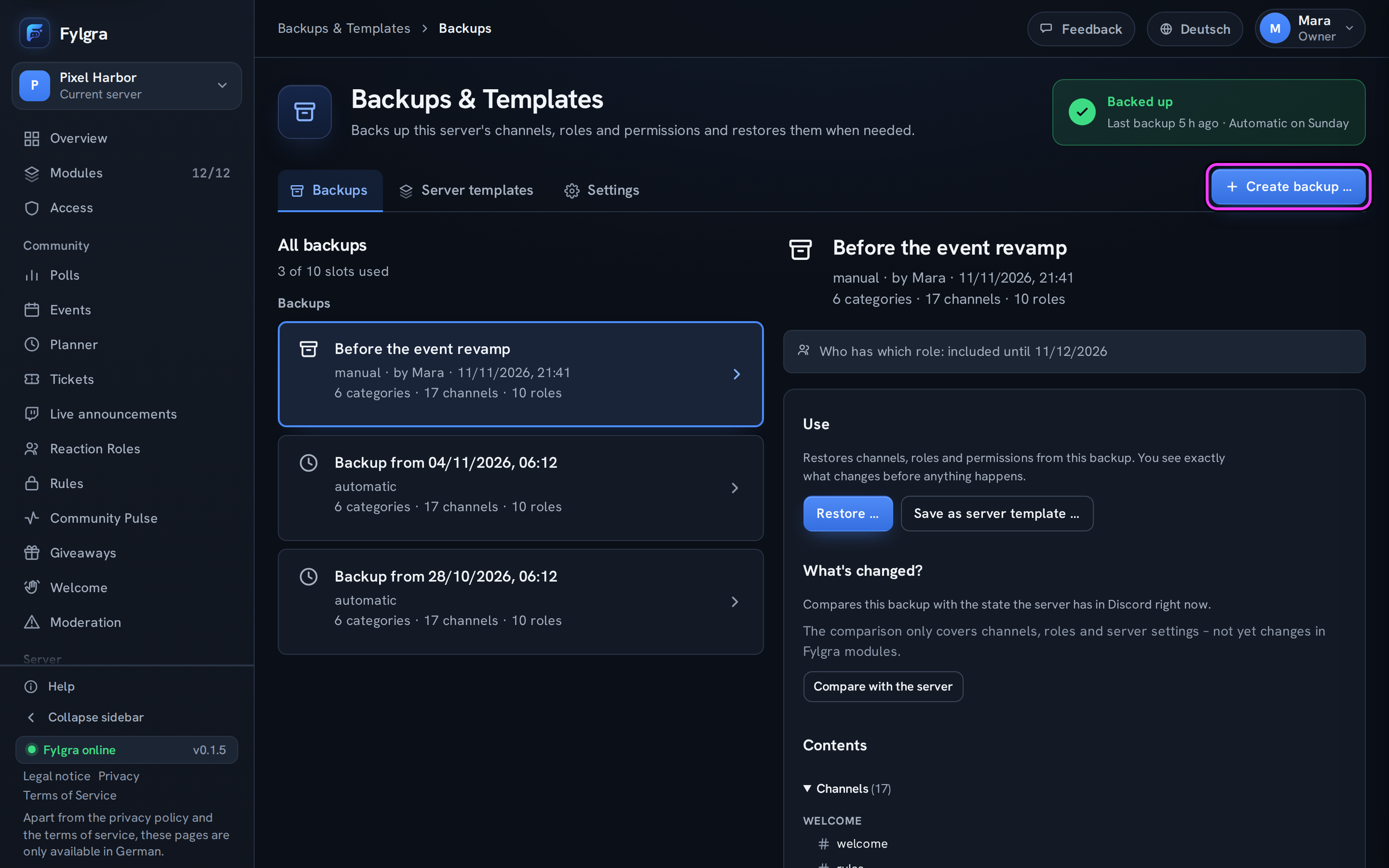
You don't need Fylgra for the server template. The Backups & Templates module covers what the template can't do: restore a backup to the same server.
Create backup … by hand or automatically, daily or weekly. Fylgra keeps several backups, so you have older versions too.
What's changed? compares a backup with the server as it is today.
Restore … creates what's missing and resets what's been changed. Anything added since then stays. Before that, Fylgra saves the current state, so you can undo everything.
For 30 days, a backup holds who has which role. That way Fylgra can give deleted roles back to those members.
Under Server templates › Assistant › Discord template link, you apply your Discord server template to an existing server. Fylgra only creates what's missing.
Fylgra doesn't back up messages, threads, invite links, emoji, stickers and bans. A backup records server settings, but Fylgra doesn't restore them. And Fylgra only backs up once it's on the server and you've created a backup. More on this in backup-anlegen and server-vorlage-anwenden.
Not working?
Still stuck? Write to me – I'll help. Send a report or email fylgra@fylgra.com
Related articles
- Discord: restore a deleted channel or role Discord know-how
- Backups & Vorlagen: was das Modul kann Overview · Backups & Templates · German
- Backup von Hand anlegen Guide · Backups & Templates · German
- Backup wiederherstellen Guide · Backups & Templates · German
- Server-Vorlage anwenden Guide · Backups & Templates · German